"The Streets" Virtual Art Gallery
- dirty beginnings
- Jul 5, 2020
- 2 min read
***Please read ALL the directions before you try and download the project***
***This project will only run on MacOS or Windows desktops/laptops. This project does NOT support mobile or tablets***
***If you have an questions or issues, please DM me on Instagram @dirty_beginnings***
Window Users:
Go to this link --> https://gamejolt.com/games/TheStreets2/512296
You'll click on the download button

3. There will be a "donate" box that pops up. You can either donate (would be much appreciated) or just download using the button at the bottom
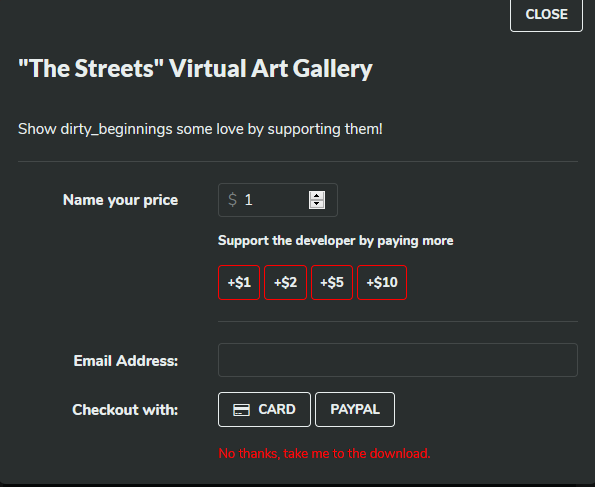
4. A box will pop up and you'll click "open with"

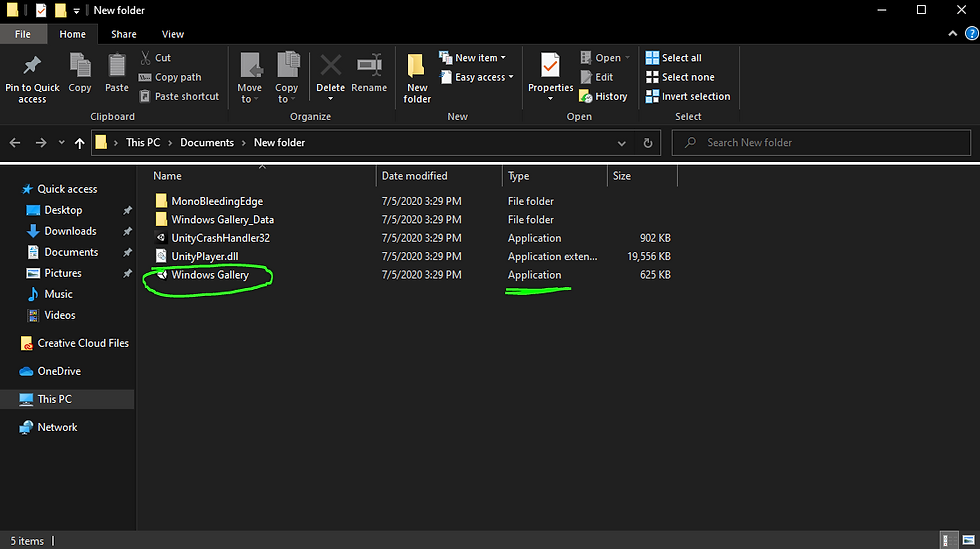
5. After it downloads the project it'll open a folder that looks like this. You'll need to extract all times in the folder that was just downloaded


6. Once the all files are extracted it'll open up the new folder with the new files. Double click the "WindowsGallery" application. There will be a box that pops up for security/firewall. To open the project click on "more info" (it might also say "advanced") and then click run anyway


7. Once you're in the project check out the "controls" and "artists" before you hit the "entrance" button Once you're in the art gallery you can't come back to the main menu without quitting the full game
8. When you're ready to exit the project press Ctrl-Alt-Delete on the keyboard to open up task manager and quit the application. I wasn't able to create an exit button in the project

MacOS Users:
Go to this link --> https://gamejolt.com/games/TheStreets/512011
You'll click on the download button
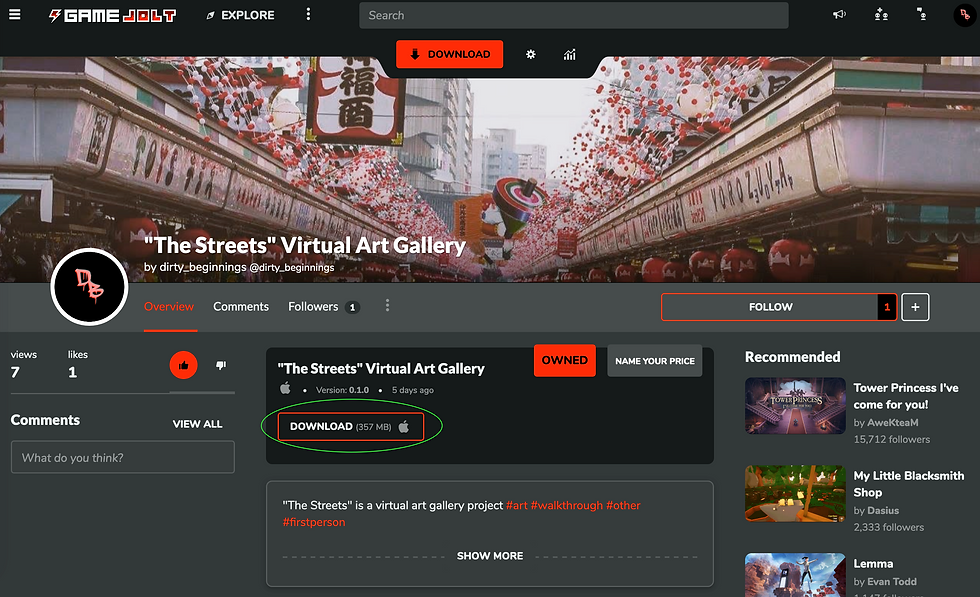
3. There will be a "donate" box that pops up. You can either donate (would be much appreciated) or just download using the button at the bottom
4. A box will pop up and you'll click "open with"
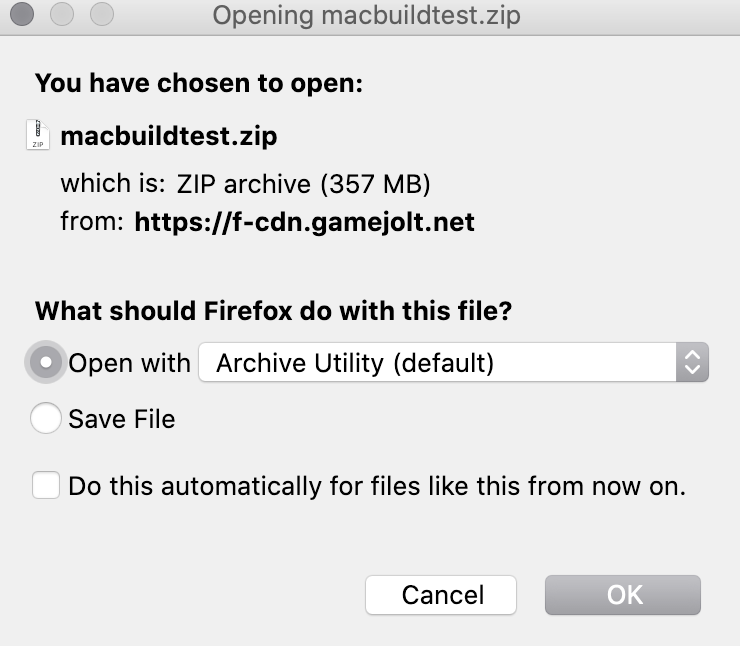
5. After it downloads the project it'll open the downloads folder with an app that looks like this. If you try to run the project from here you'll get this box that pops up


6. You'll need to go to your "finder" and go back to the "downloads" folder and right-click the app and click the "open" option


7. Once you click the "open" option this box will pop up and you'll be able to click on the "open" option again to fully open the project

8. Once you're in the project check out the "controls" and "artists" before you hit the "entrance" button Once you're in the art gallery you can't come back to the main menu without quitting the full game
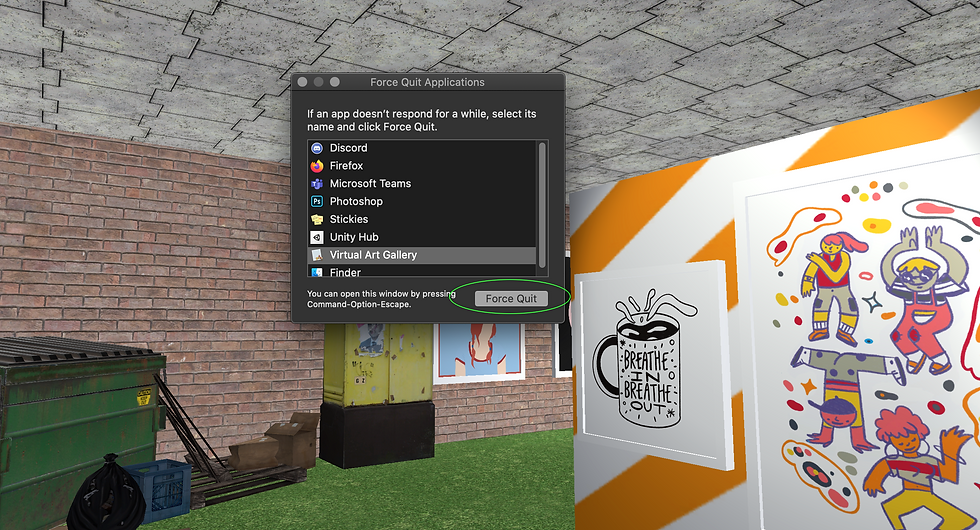
9. When you're ready to exit the project press Command-Option-Esc on the keyboard to open up task manager and quit the application. I wasn't able to create an exit button in the project

Comments